In the process of carpooling, drivers are entrusted with the responsibility of initiating and finalising each trip within the app. This entails marking the beginning and end of the journey accurately.
To commence a trip, drivers must tap the 'Start Trip' button displayed in the app. This action signifies the initiation of the ride and allows for seamless tracking of the trip's progress.
Once the journey is completed, drivers are required to tap the 'Complete Trip' button. This step ensures the trip's status is updated accordingly, providing clarity and transparency to all parties involved.
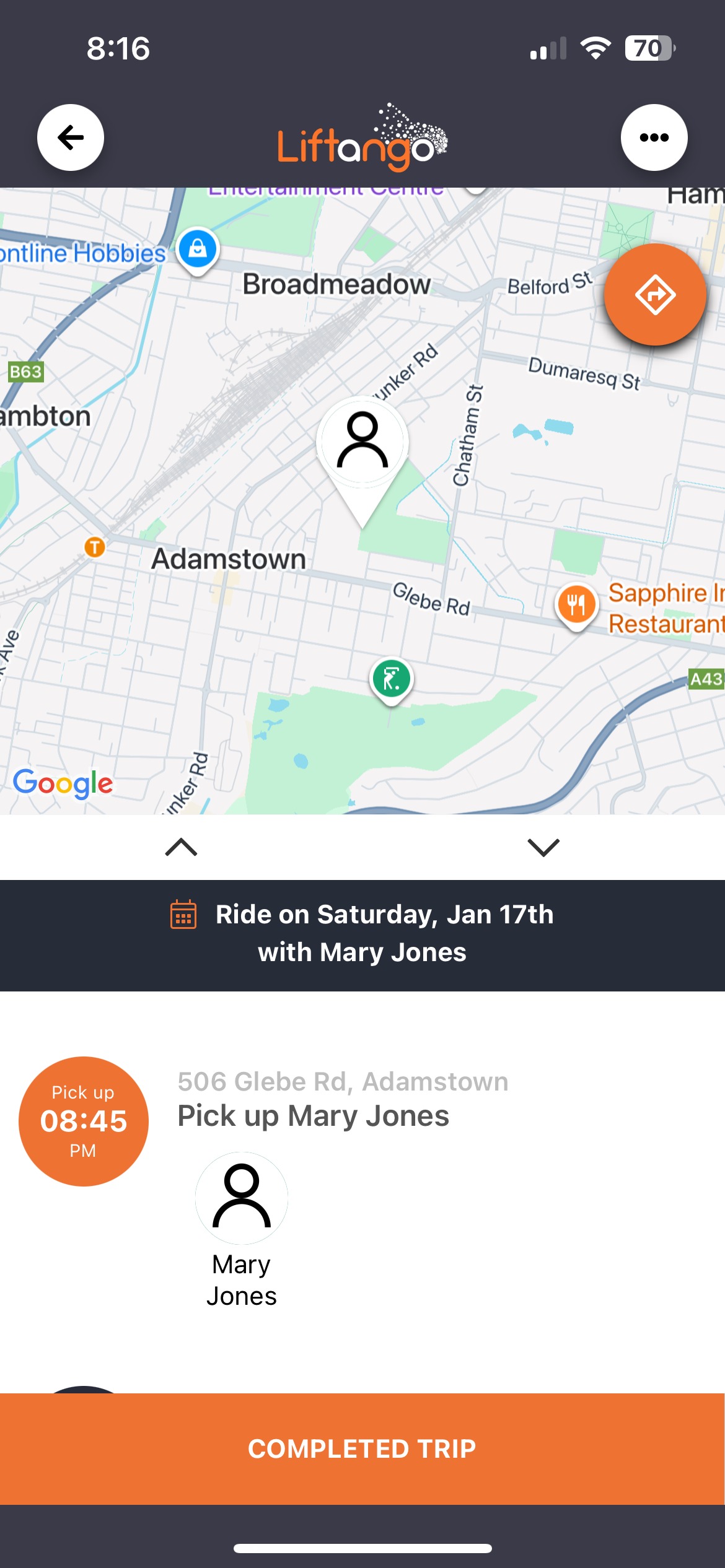
It is important for a trip to be marked as Completed for it to be verified. This means that the drivers also need to click the "COMPLETED TRIP" button at the end of every trip.| 1. Trip Assignment Drivers are assigned to start and complete the carpool trip. Assigned trips appear on the Booking Home Screen. 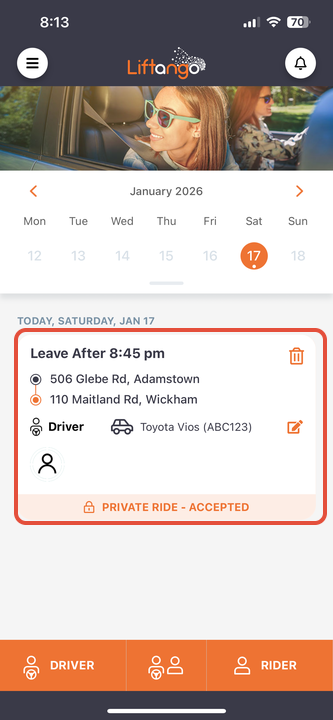 |
| 2. Access Ride Details Select the correct ride from the Booking Home Screen to view the ride details, including the trip date, time, and pick-up location for the co-carpooler. Select Start Trip to begin the carpool journey. 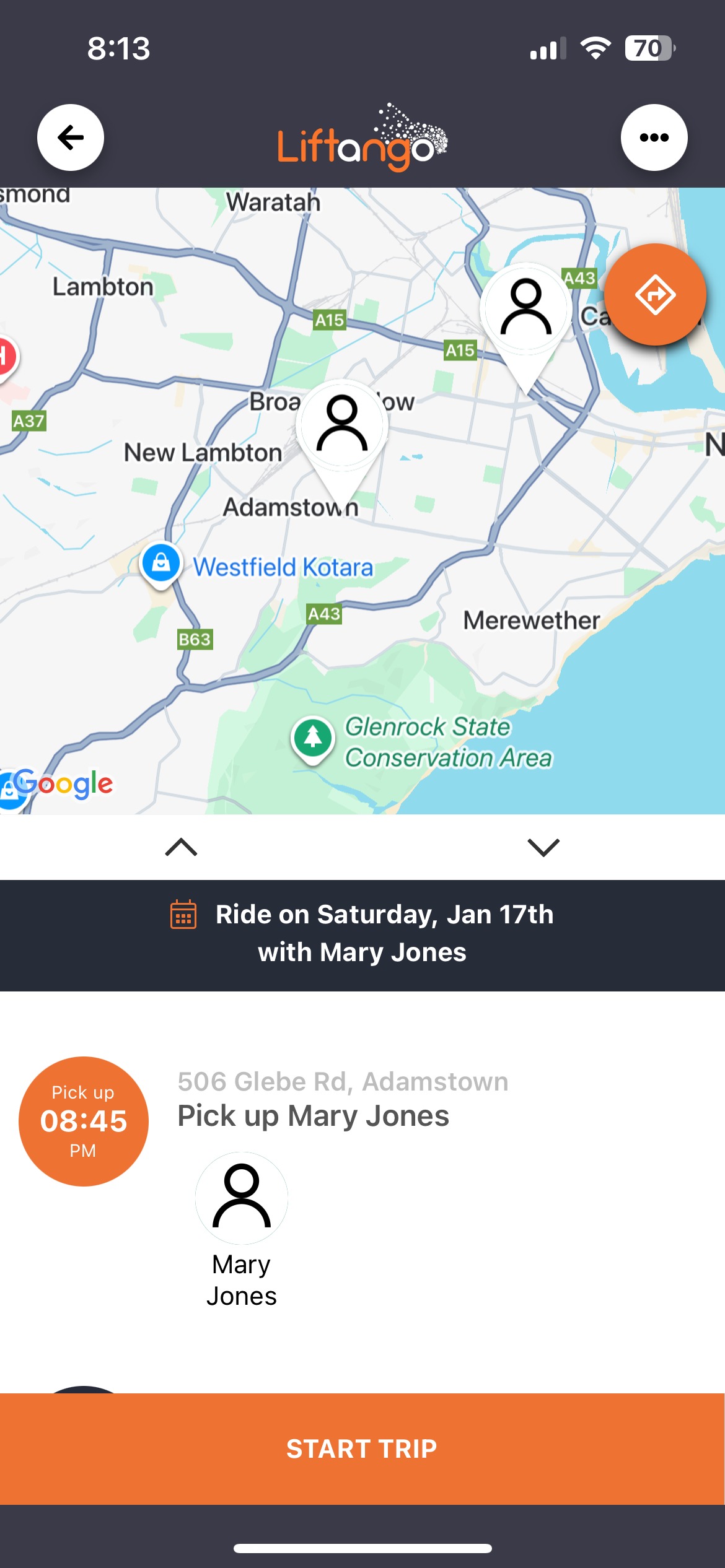 |
| 3. Travel to Pick-Up Location After starting the trip, drivers proceed to the designated pick-up location of the co-carpooler. 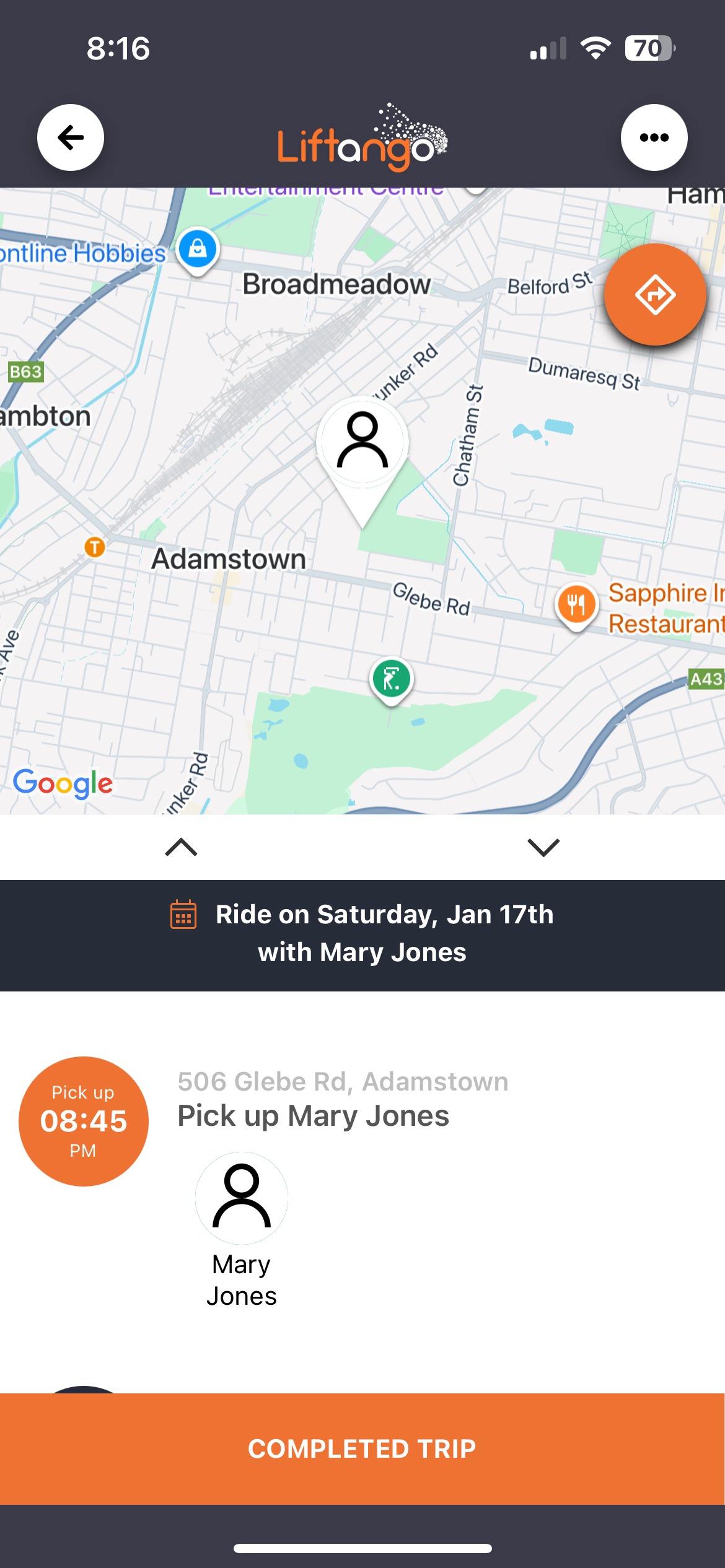 |
| 4. Trip Status Update Once the trip is started, the trip status updates to En-Route for both the driver and the rider. 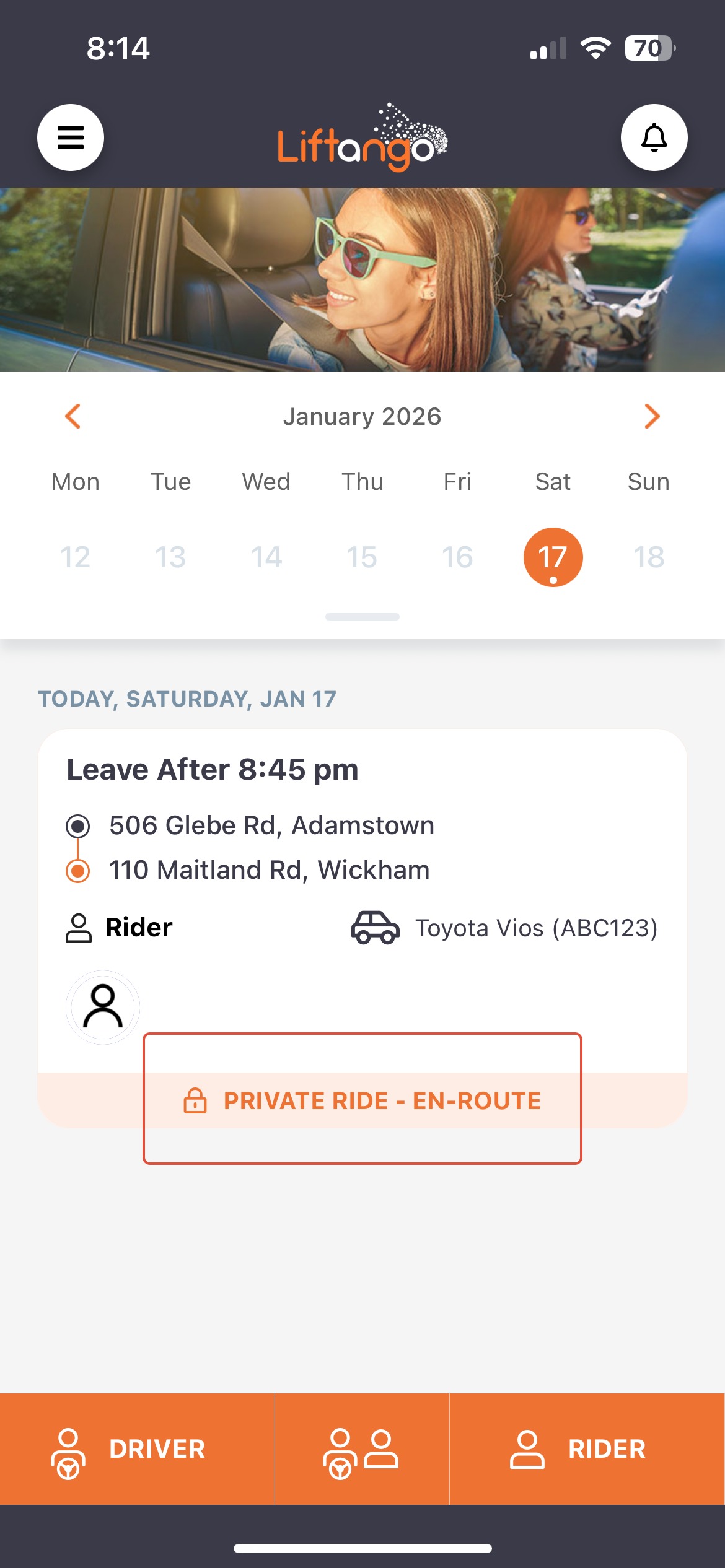 |
| 5. Rider Trip View Riders can view trip details and will see the Leave Feedback option when accessing the ride details. 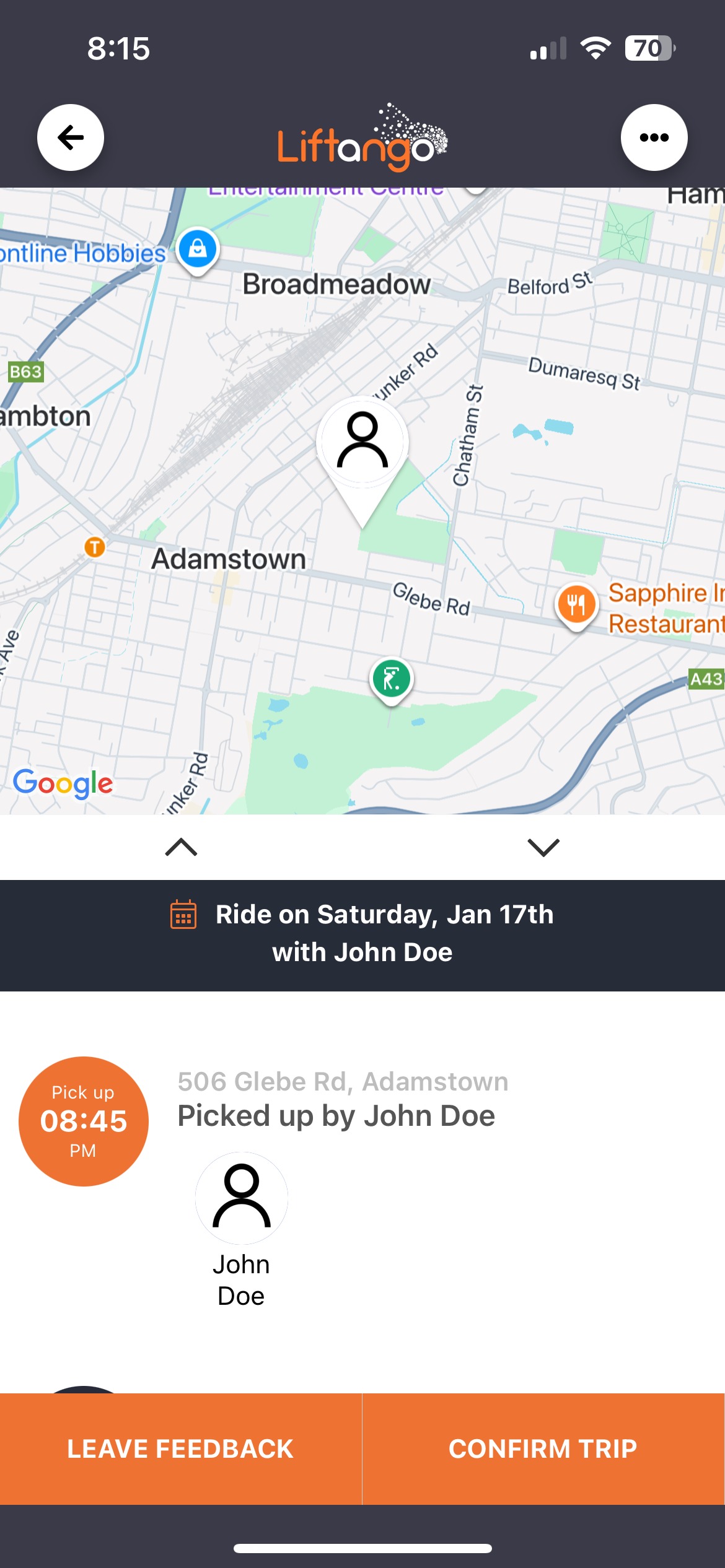 |
| 6. Complete the Trip At the end of the journey, drivers must select Completed Trip to mark the ride as finished.
 |
| 7. Driver Feedback After completing the trip, drivers can select Leave Feedback to share feedback for the completed ride. 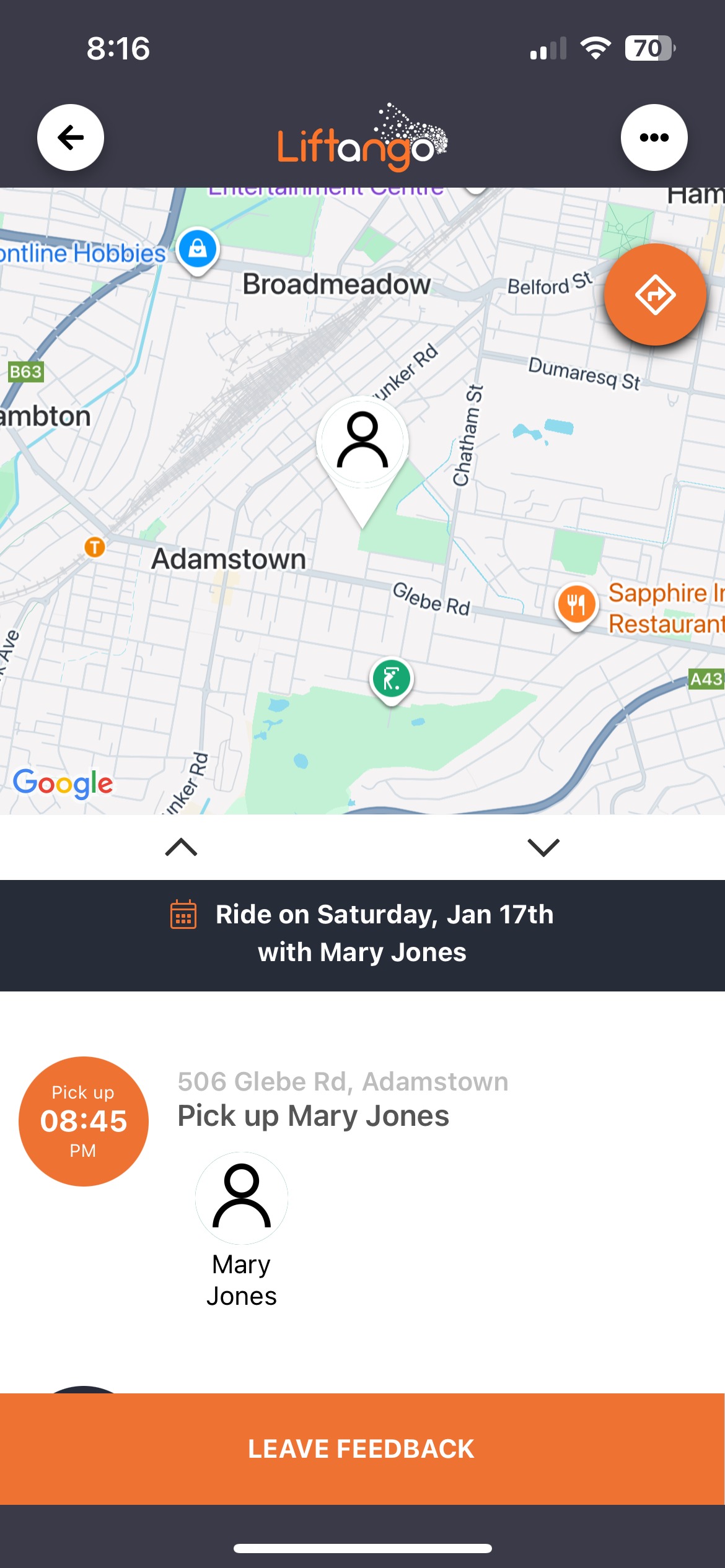 |
| 8. Submit Feedback Additional feedback details may be entered. Select Confirm to submit. Completed ride details will then appear on the screen. 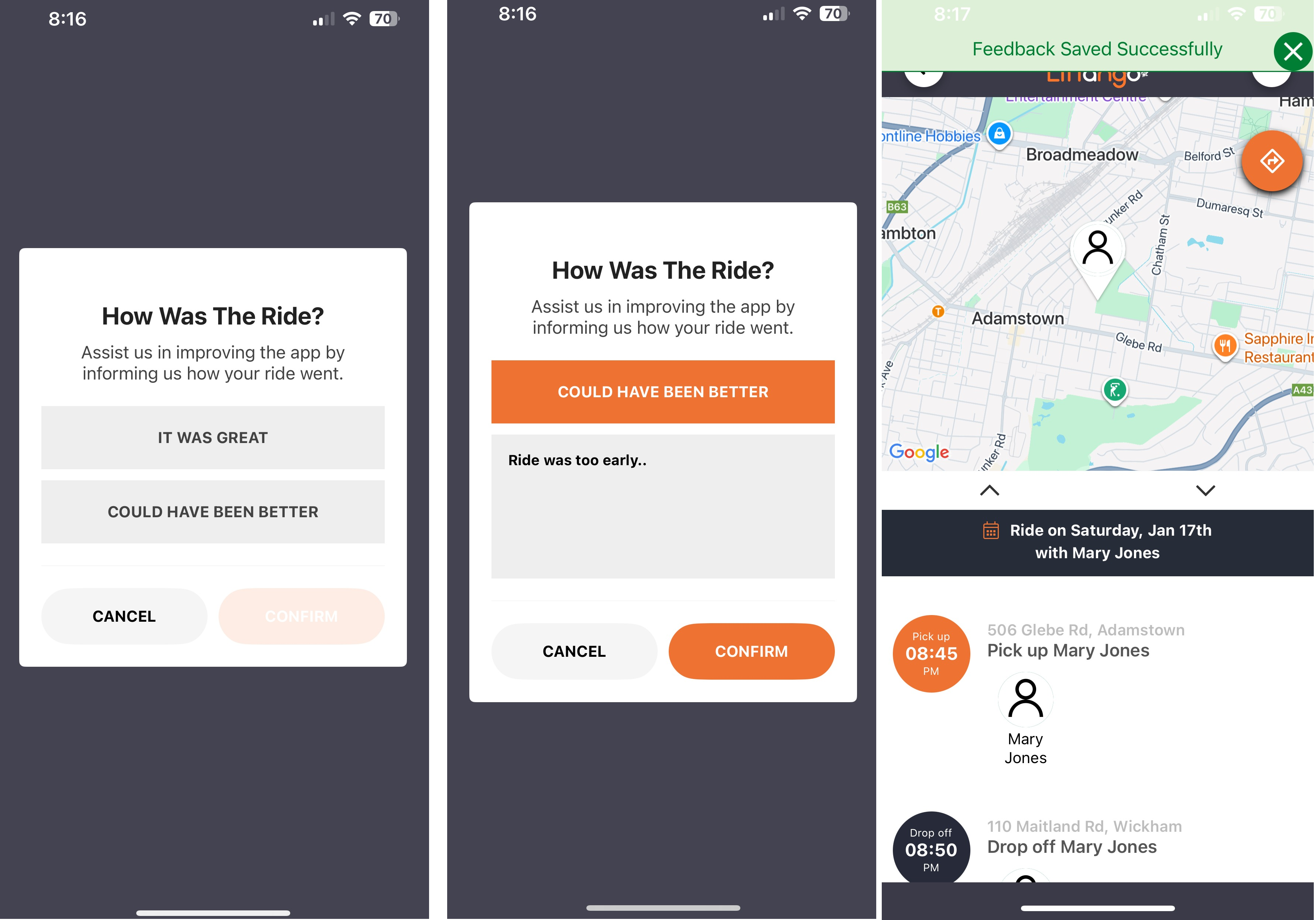 |
| 9. Completed Status Completed trips will display a Completed status on the Booking Home Screen. 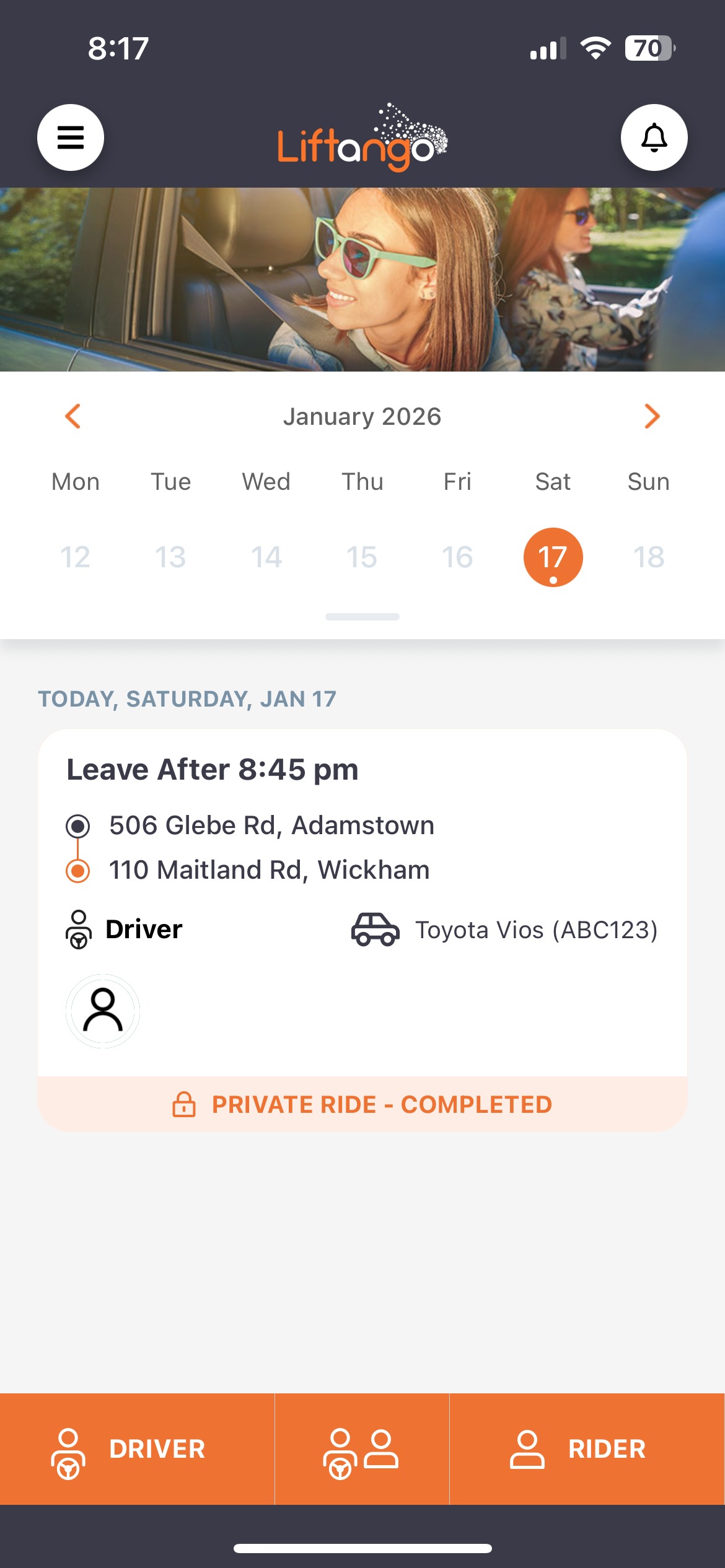 |
| 10. Rider Feedback Riders can also submit feedback by selecting the completed ride from the Booking Home Screen and choosing Leave Feedback. 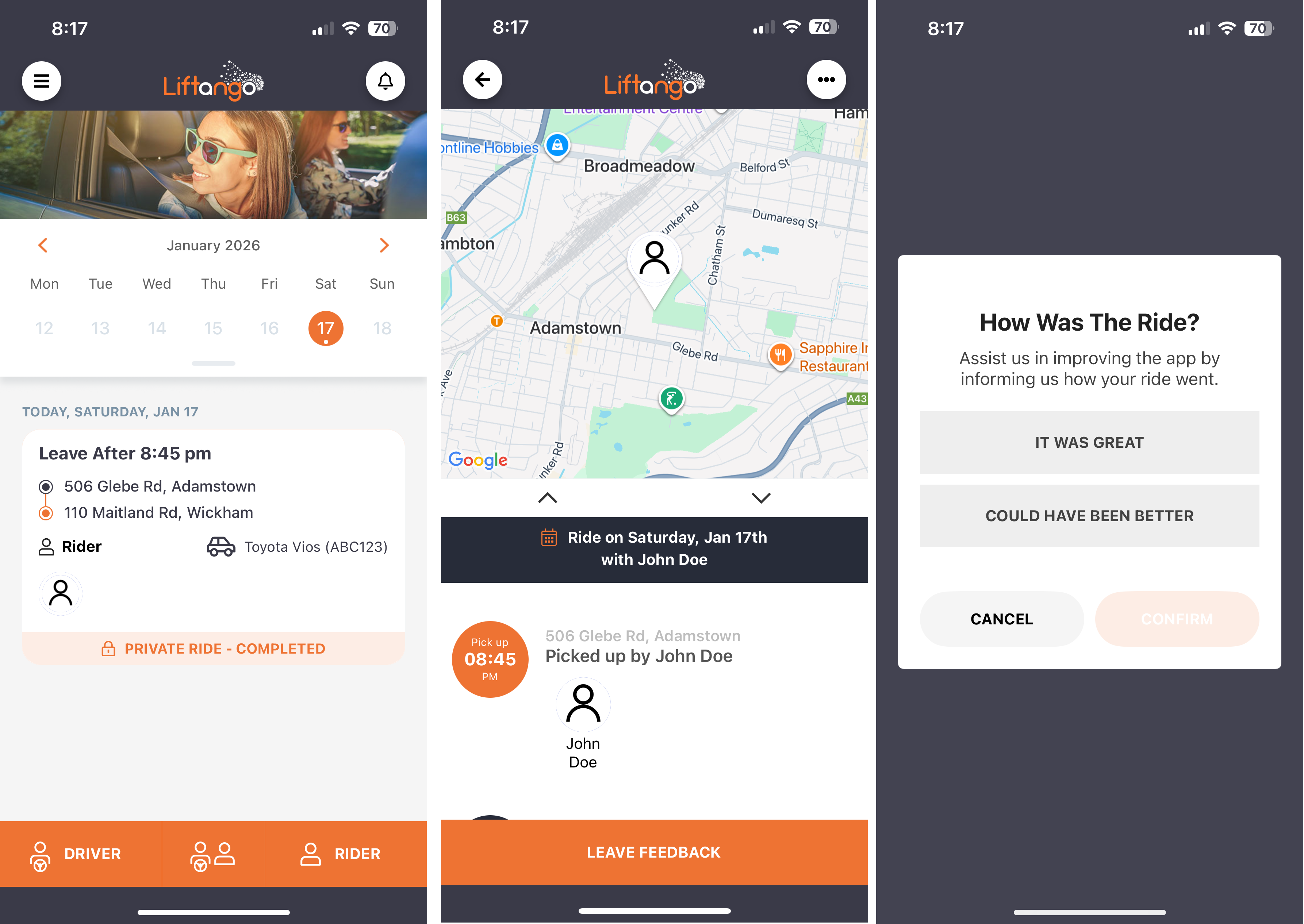 |
Step-by-step tutorial below.
It is recommended to click the icon to go into Full-Screen mode.5.
Was this article helpful?
That’s Great!
Thank you for your feedback
Sorry! We couldn't be helpful
Thank you for your feedback
Feedback sent
We appreciate your effort and will try to fix the article