NOTE: For organizations using Single Sign-On (SSO), password resets are managed through your organization's SSO process. In such cases, users should follow their designated procedure for resetting passwords.
If you have forgotten your password, follow the below instructions to reset your password.
- Open the Liftango app.
- Input your registered email and tap 'Sign In'.
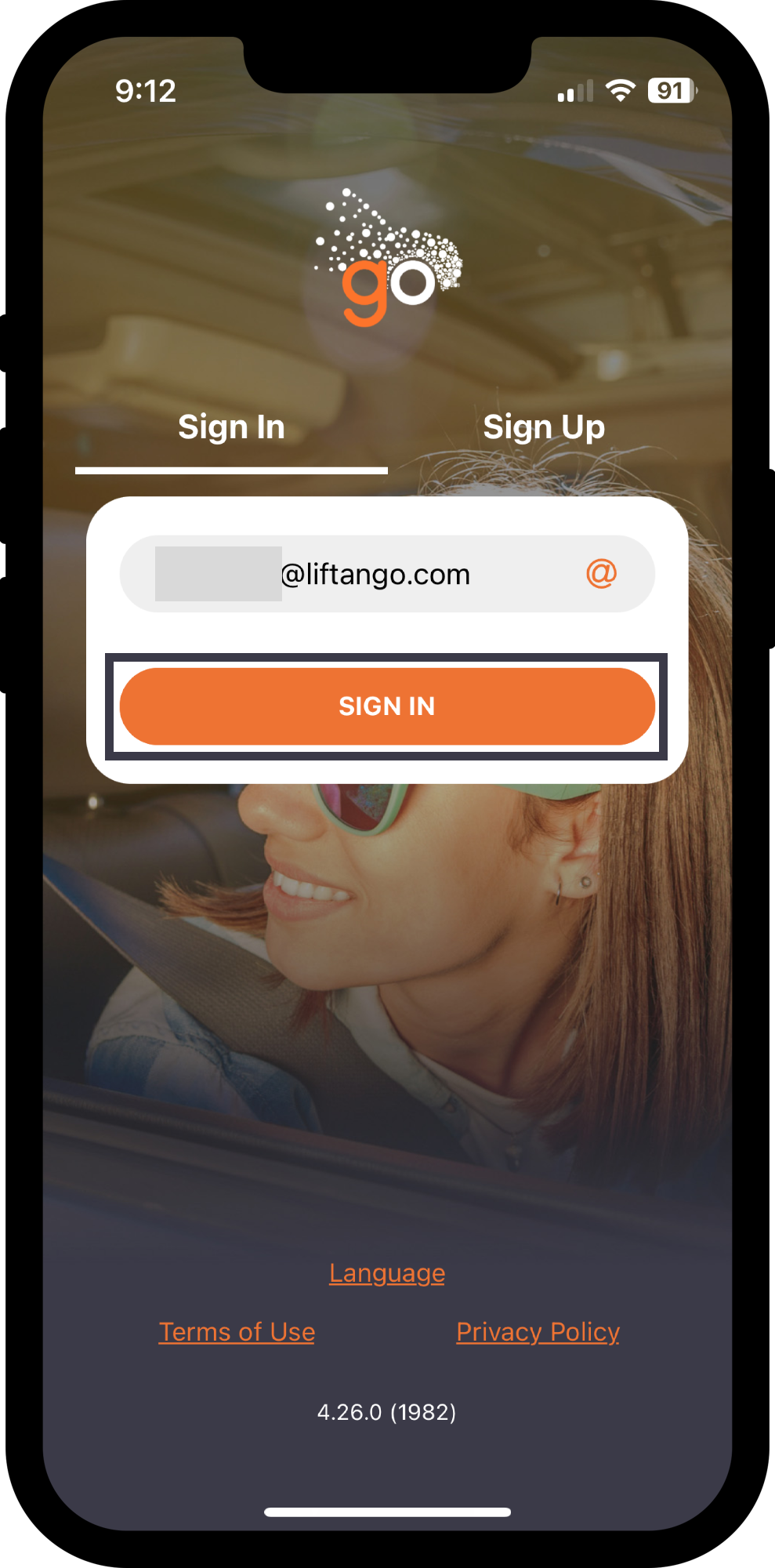
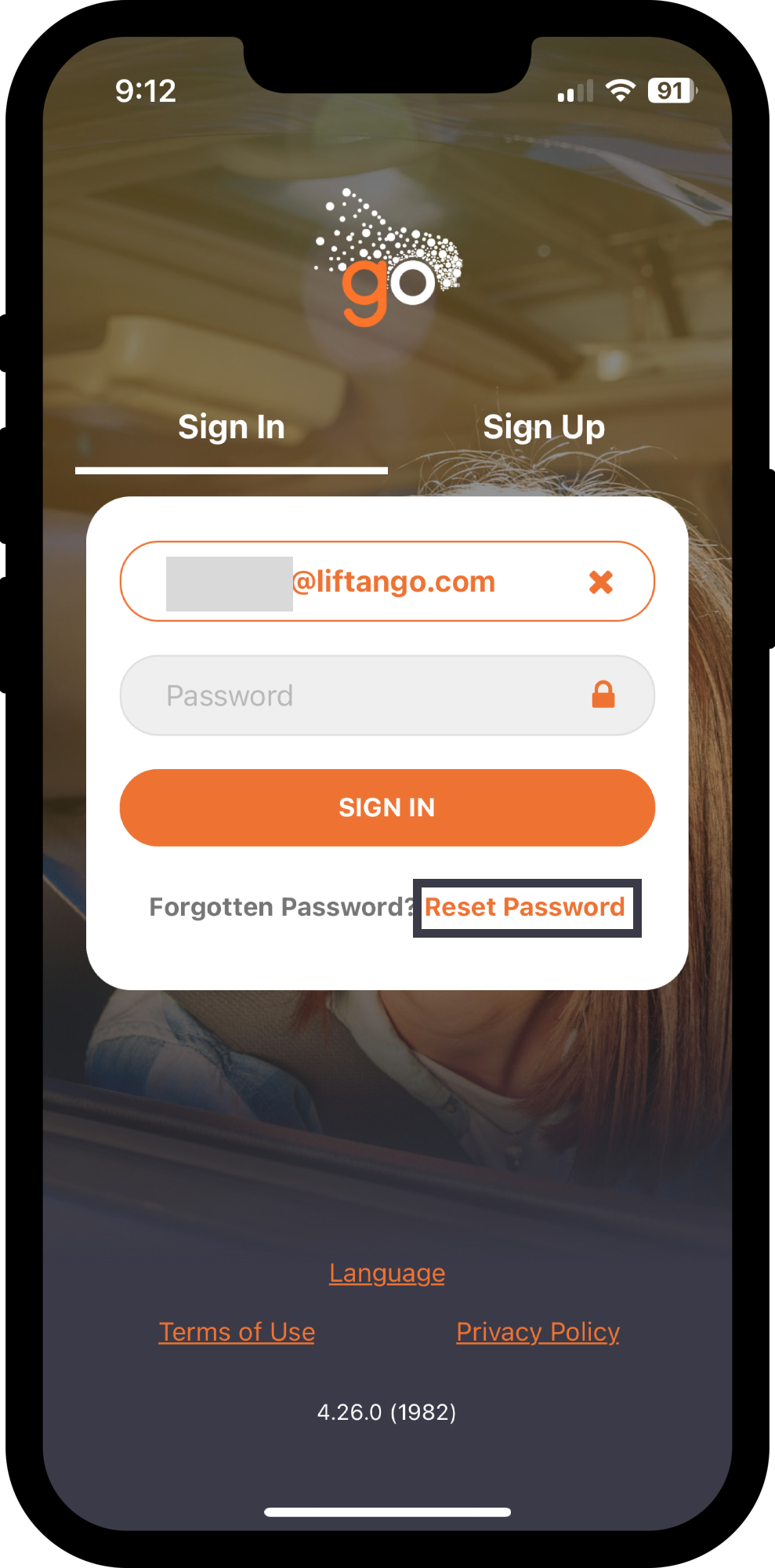
- On the next screen, tap 'Reset Password'.
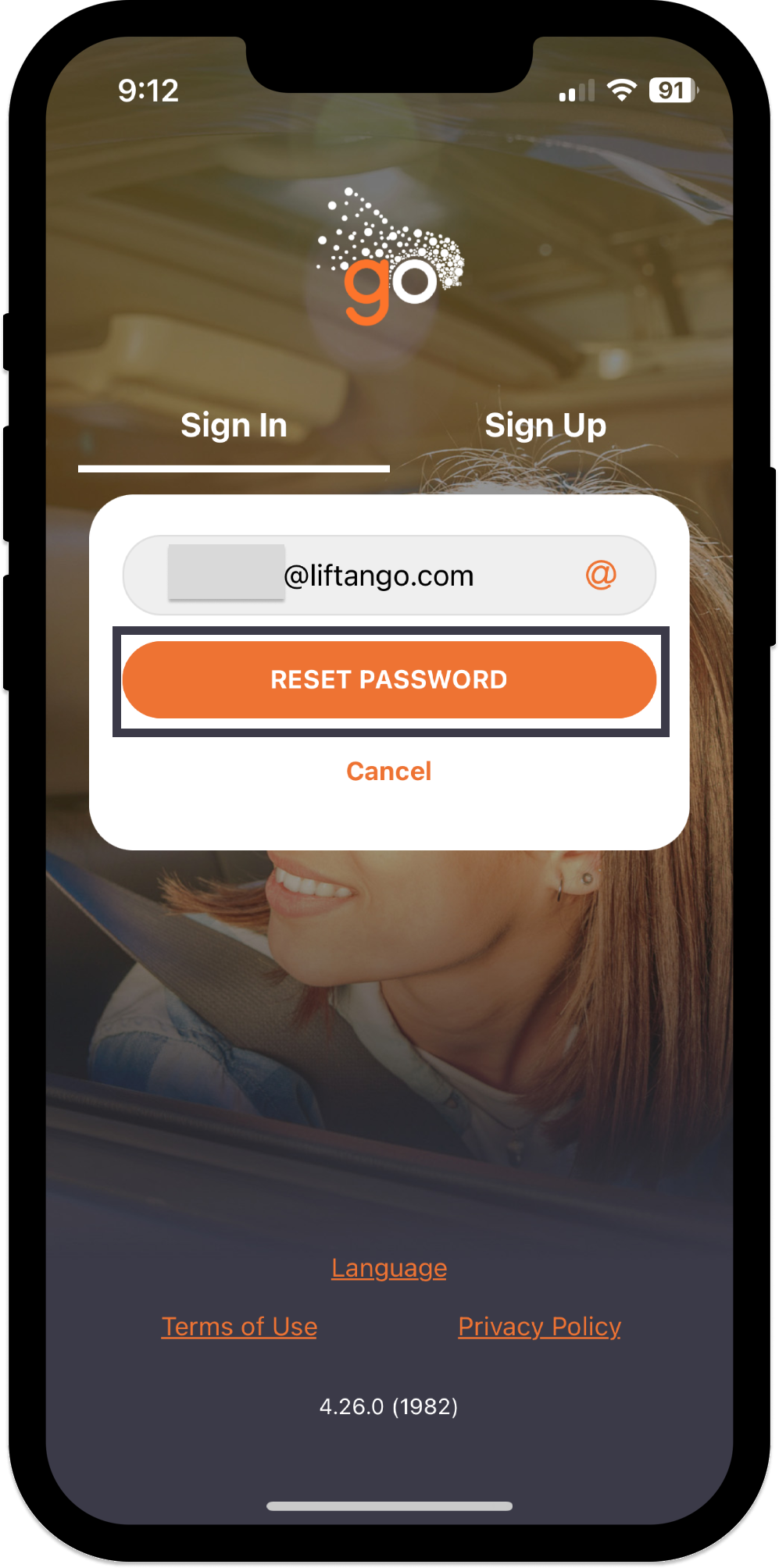
- Enter your email once again then click 'Reset Password'.
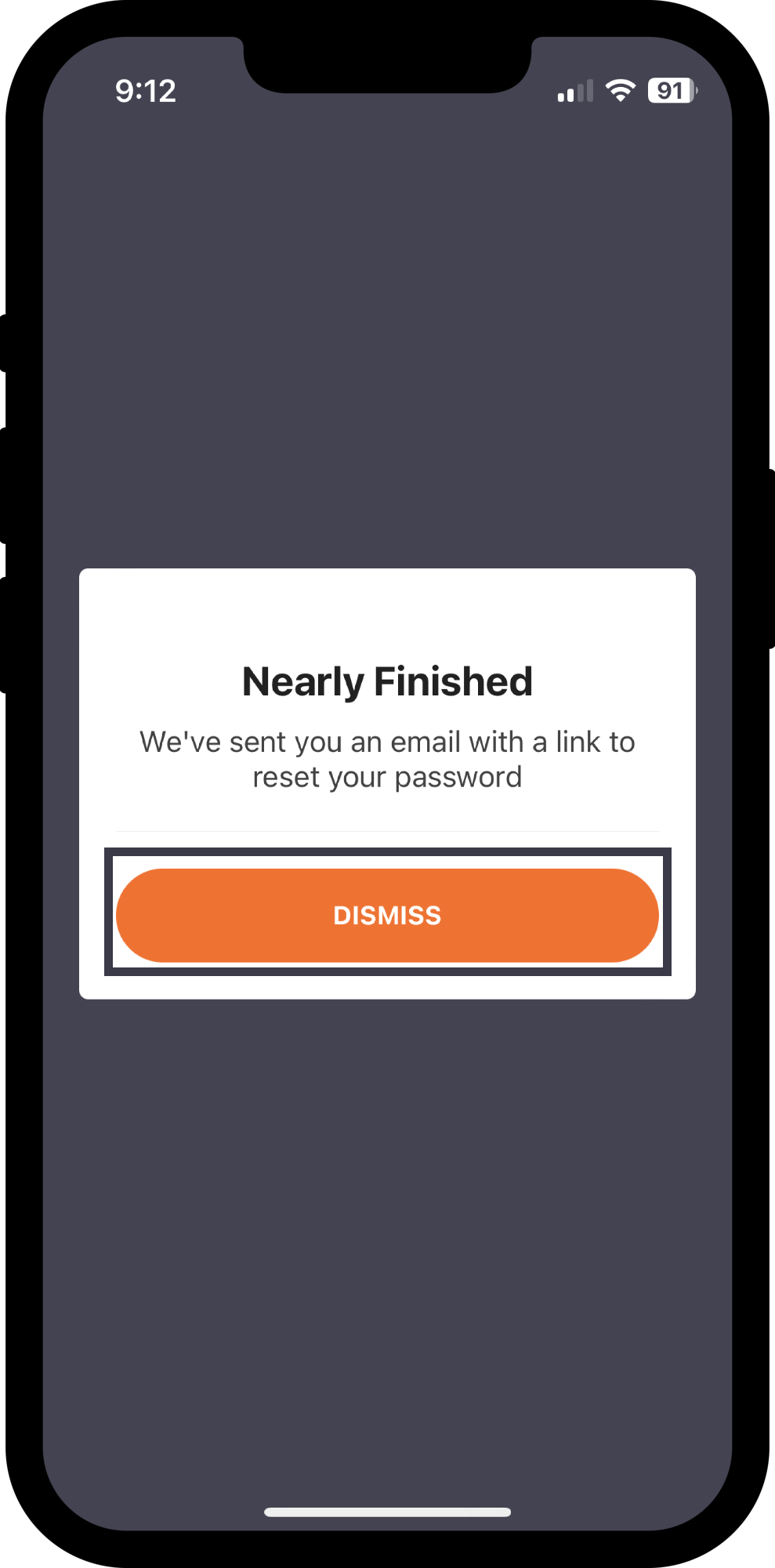
- Nearly Finished prompt will display. Tap 'Dismiss' to confirm.
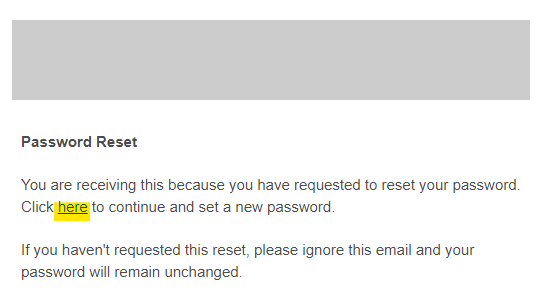
- Open the email and tap on the blue link in the first paragraph 'here'. This takes you to a 'reset password' page.
7. Type in your new password and confirm.
NOTE: Please refer to this documentation for guidance on creating a strong and secure password.
8. You will receive a notification advising that the password has been successfully reset. 
9. Navigate back to the Liftango app, use your email and new password to sign in.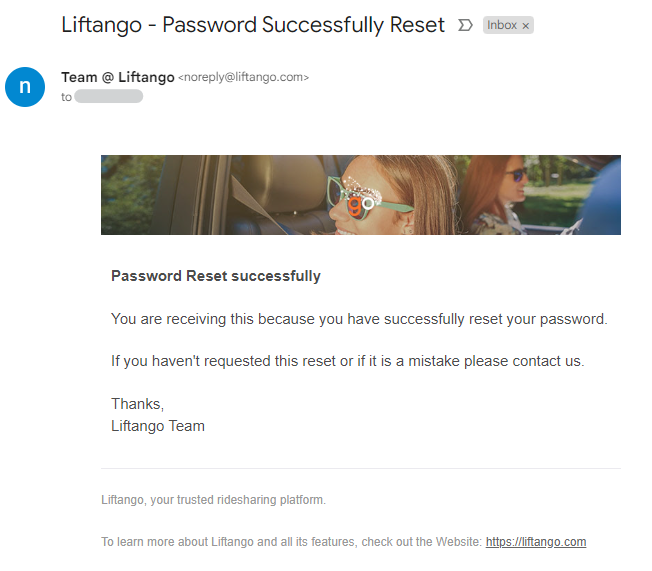 10. Start creating rides!
Was this article helpful?
That’s Great!
Thank you for your feedback
Sorry! We couldn't be helpful
Thank you for your feedback
Feedback sent
We appreciate your effort and will try to fix the article