This guide provides clear steps to help teams diagnose, triage, and resolve common App Performance & Errors issues.
TABLE OF CONTENTS
- Why am I seeing an error message upon booking?
- Switching networks through the app
- The app won’t open / keeps crashing
- Login not working
- Map not loading or showing incorrect location
- When to Escalate?
Why am I seeing an error message upon booking?
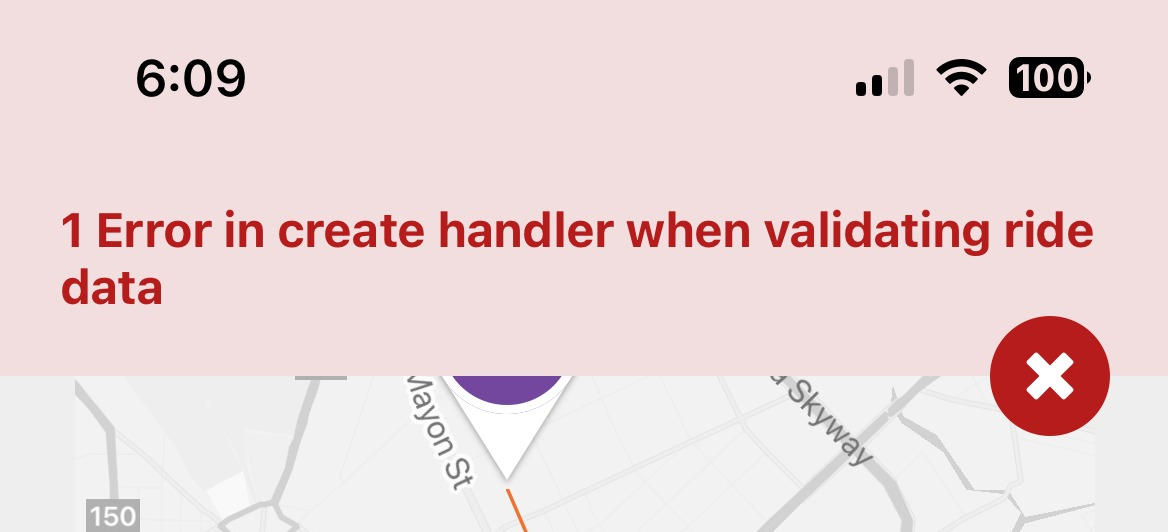
If you encounter the error message below, it means your account is connected to the wrong network.
Switching networks through the app:
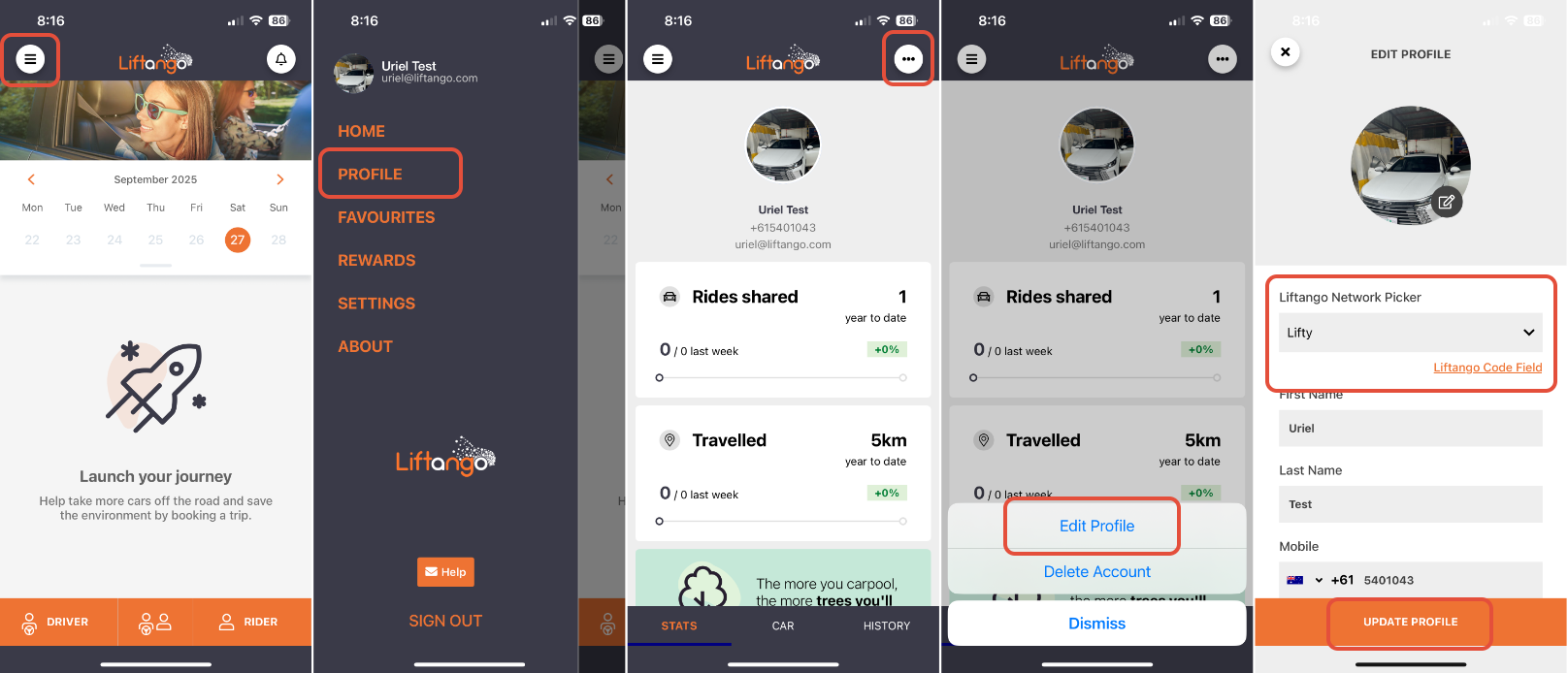
If you need to switch networks through the app, you may follow below steps:
1. Click the burger icon at the top-left corner of the app.
2. Click Profile.
3. Tap on the three-dotted icon at the top-right corner of the app.
4. Select "Edit Profile"
5. Select the network you need in the Network Picker, then tap on Update Profile to save your new network.
If you need to switch networks through the portal, you may follow this Knowledge Article:
The app won’t open/keeps crashing
Step 1: Close the App Completely
On Android: Open Recent Apps and swipe the app away.
On iPhone:
For iPhones with a Home button (e.g., iPhone 8 or earlier): double-press the Home button to open the App Switcher, then swipe the app up to close it.
For iPhones without a Home button (iPhone X and later): swipe up from the bottom of the screen and pause in the middle, then swipe the app up to close it.
Step 2: Relaunch the App
Tap the app icon again to see if it opens normally.
Sometimes, a simple restart fixes temporary glitches.
Step 3: Check for Updates
Go to the App Store (iPhone) or Google Play Store (Android).
Search for the app and check if an update is available.
Tap Update if you see one.
Step 4: Reinstall the App (if the issue persists)
Uninstall the app from your device.
Restart your device (optional but recommended).
Reinstall the app.
Step 5: Contact Support (if the problem remains)
If it still crashes after reinstalling, contact the app’s support team at support@liftango.com
Login not working
Make sure you’re entering the correct work email or using the proper Single Sign-On (SSO) account linked to your organization.
For instructions on resetting your password using the Liftango app, you may check this Knowledge Article (Resetting your password using Liftango App) for more information.
For tips on how to setup a secure password, you may check this Knowledge Article (Password Guidelines: Creating Strong and Secure Password) for more information.
Map not loading or showing incorrect location
Check if location services are turned on.
For more information regarding the benefits of the location service, you can visit this Knowledge Article (Do I have to enable location services?).
When to Escalate?
If the above steps don’t resolve the issue, gather the following details before escalating:
Device Type and OS Version (e.g., iPhone 14 – iOS 18.1 / Samsung S22 – Android 14)
App Version (found in the app settings or About section)
Booking ID (if applicable)
Screenshot or Screen Recording of the error
Once collected, send these details to the Support Team at support@liftango.com or tap the Help button within the app to submit them for further investigation.
Was this article helpful?
That’s Great!
Thank you for your feedback
Sorry! We couldn't be helpful
Thank you for your feedback
Feedback sent
We appreciate your effort and will try to fix the article