CARPOOL BOOKING
TABLE OF CONTENTS
Carpool bookings are done via the user’s app on their mobile devices. Once logged in, the users will notice three buttons leading them to the booking page.
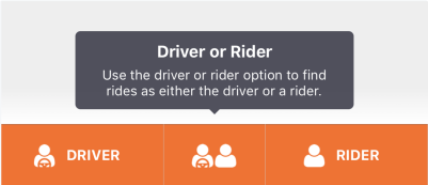
Please do take note of the following:

The carpool match is the assigned person for the public or private ride.
Companions can be privately invited to match with a carpool request. If inviting multiple companions for a private ride, only one can accept. See Private Rides Feature article for tutorial.
Extra Passengers on the other hand travel on the same journey as the requested ride and do not accept a carpool match. For guide on how to add extra passengers, please see Carpool - Adding Extra Passengers.
Do not add a co-carpooler as both companion and extra passenger.
To increase the chances of matching with another carpooler, carpoolers with a vehicle who are also willing to be riders may select the Driver or Rider button.
Below is a step-by-step video tutorial on the carpool booking process.
1. Create a New Ride Request
To book a ride, the destination and origin addresses need to be initially input.
Note:
It is important to verify the other details (departure date and time, companion, etc.) before submitting the booking request.
13 STEPS
1. Click anywhere to start the tutorial. You can use the magnifying glass icon to zoom in/out if needed.

2. To book a carpool trip, click on any of the three buttons (Driver, Driver or Rider, and Rider) at the bottom of the screen.
Note: To book as a Driver, you should have vehicle details saved on your profile. Else, you can book the trip as a Rider.

3. Tip: If you have a vehicle and is also willing to be a passenger, then choosing the Driver or Rider button will increase your chances of matching with another carpooler.

4. Click Create New Ride Request.

5. Input the address of your Drop-off or Arrival location. Once done, click Confirm Destination.

6. Input the address of your Pick-up or Departure location. Once done, click Confirm Origin.

7. Make sure to also update your trip departure's Date & Time.

8. ou may also request for a Return Trip where you'll also have to indicate the date & time.
For Repeated Rides, just toggle the button and select the day/s you want the ride to be repeated.
Once done, click Confirm Details.

9. Review your details, including the Extra Passengers. Once confirmed, click Submit Booking Request.

10. Tip: If you initially didn’t get a match, it is advised that you don’t cancel the request right away. Any ride that isn't matched will still be available for others to match with, right up until its departure time.

11. If your request successfully matched with another carpooler, you will be able to see your ride's details as well as the name of your co-carpooler.

12. Your successful carpool matches may be seen with its details on the app's home screen.

13. Click anywhere to end the tutorial.

Here's an interactive tutorial
https://www.iorad.com/player/2009282/-Carpool--How-to-create-a-new-ride-request-
It is recommended to click the icon to go into Full-Screen mode.
1.1. Changing the Vehicle
This feature allows users to choose which of their vehicles will be used for the ride, enhancing the experience by eliminating the need to edit or delete a vehicle and recreate the ride.
Note: Switching to a lower capacity vehicle is restricted and requires canceling and rebooking the ride.
5 STEPS
1. Click the start tutorial to start. You can use the magnifying glass icon to zoom in/out if needed.

2. Click on Edit Button to change the vehicle

3. Select the Vehicle

4. The Vehicle has been changed. Click anywhere to move next.

5. Click anywhere to finish the tutorial.

Here's an interactive tutorial
https://www.iorad.com/player/2381469/-Carpool----How-to-change-the-vehicle-
It is recommended to click the icon to go into Full-Screen mode.
Note: The "Update Vehicle" button is removed from the driver's app for accepted carpools when the network feature that restricts this action is enabled.
1.2. Regular Rides
This feature shows the top three rides arranged by their most recent departure times, streamlining the booking process, particularly for trips originating and ending at the same addresses.
Note: The addresses can still be updated even after selecting Regular Rides.
10 STEPS
1. Click anywhere to start the tutorial. You can use the magnifying glass icon to zoom in/out if needed.

2. This feature shows your top three rides sorted by the latest Departure Time. This feature makes it easier for users to book for rides particularly for the same Origin and Destination addresses.

3. To book your carpool trip, click on any of the three buttons at the bottom of the screen. You will then see your Regular Rides.
Select which Regular Ride you want to book to proceed.

4. Your Pick-up and Drop-off locations will automatically be populated, but you can still update these locations by clicking the check icon.
You may also update the other details of your carpool ride by clicking on the check icon.

5. Update with your desired date & time, and indicate if Return Trip or Repeated Ride is required as needed.
Once done, click Confirm Details.

6. Review your details before confirming your ride request. Once done, click the Submit Booking Request at the bottom part of your screen.

7. Tip: If you initially didn’t get a match, it is advised that you don’t cancel the request right away.
You may Edit your Booking or Wait For Match.

8. Rides that are currently unmatched will have the Looking For Match status
Any ride that isn't matched will still be available for others to match with, right up until its departure time.

9. You will receive an in-app and SMS notification of when your ride has found a match. Opening the notification will redirect you to another page with further details of the booked ride and the matched carpooler.

10. Click anywhere to finish the tutorial.

Here's an interactive tutorial
https://www.iorad.com/player/2009287/-Carpool--How-to-book-using-Regular-Rides-
It is recommended to click the icon to go into Full-Screen mode.
1.3. Updating Ride Details
If there's a need to update a ride detail, the user could either:
- Click on the Pencil icon corresponding to the ride that needs to be updated.; or
- Click the ride to see its details then click the three-dots icon to edit.
14 STEPS
1. Click anywhere to start the tutorial. You can use the magnifying glass icon to zoom in/out if needed.

2. There are two ways to update the details of a ride:
1. Click on the Pencil icon corresponding to the ride you specifically want to update.

3. You will be redirected to the Booking Request Summary page where you may update any detail of your trip.

4. You may adjust the number of passengers from Passenger Settings. Once done, click Confirm Details.

5. You may also update your ride date and time as needed. Once done, click Confirm Details.

6. Once you're done with the updates, click Submit Booking Request.

7. If your ride still has no match found, you may either Edit the Booking or Wait For Match.

8. 2. You may also update your ride details by clicking the specific ride to see its details.

9. Click on the three-dots icon on the top-right part of your screen.

10. Click Edit Ride.

11. Edit your ride's details as needed. Once done, click Submit Booking Request.

12. Rides that are currently unmatched will have the Looking For Match status
Any ride that isn't matched will still be available for others to match with, right up until its departure time.

13. You will receive an in-app and SMS notification of when your ride has found a match. Opening the notification will redirect you to another page with further details of the booked ride and the matched carpooler.

14. Click anywhere to finish the tutorial.

Here's an interactive tutorial
https://www.iorad.com/player/2009291/-Carpool--How-to-update-ride-details-
It is recommended to click the icon to go into Full-Screen mode.
1.4. Match Found!
For Public Rides, it is normal that a user will take time to look for a match for their ride.
Note: The system determines if a ride can be a feasible match with another ride, even if they don't have the exact same location and time details. Such matches are flagged as "Not Optimal." A prompt will appear indicating that the match is not optimal, and the user may choose whether to proceed or not.
Tip: If initially there isn't a match, it's advised not to cancel the request immediately. Any unmatched ride remains available for others to match with until its departure time.
An in-app notification will alert when the ride has found a match. Opening the notification will redirect to another page with further details of the booked ride and the matched carpooler.
9 STEPS
1. Click anywhere to start the tutorial. You can use the magnifying glass icon to zoom in/out if needed.

2. When booking for Public Rides, it is normal that a user will take time to look for a match for their ride.
Tip: To increase your chances of getting a match, choose the Driver or Rider if you have a vehicle and is also willing to be passenger.

3. Create a New Ride Request or book using your Regular Rides.

4. Update the details in the Booking Request Summary page for the Locations, Date & Time, Extra Passengers, etc. Click on Submit Booking Request to proceed.

5. Note: The system is smart enough to know if your ride will be a feasible match to another ride even if they do not have the exact same location and time details. Such matches will be flagged as "Not Optimal".

6. There should be a prompt that states that the match is not optimal and a user may choose either proceed or not. Clicking on the X button will Decline the matched ride and ask the user to Confirm.

7. For optimal ride matches, this is how the user's screen should display. This will include the date and time of the ride and the name of the co-carpooler.
Click the check icon to accept the match.

8. Your matched carpool rides will be displayed on the app's home screen with Accepted status.

9. Click anywhere to finish the tutorial.

Here's an interactive tutorial
https://www.iorad.com/player/2009293/-Carpool--Match-Found-
It is recommended to click the icon to go into Full-Screen mode.
2. How to Start/Complete a Carpool Trip
For a step-by-step guide to starting and completing a carpool trip, please see How to Start/Complete your Carpool Trip.
For contacting your fellow carpooler, you may follow below steps:
9 STEPS
1. Press anywhere to start

2. Click on the Ride.

3. You may click the Up button to see more information, or Down button to hide information.

4. Click on the Name of your Co-Carpooler to see more information.

5. Below Name is also clickable.

6. Here, you can see the information of your Co-Carpooler. You may click the Phone icon to call, or the message icon to send a message.

7. This is what it would look like if you click the Phone icon.

8. This is what it would look like if you click the Message icon.

9. Click anywhere to End Tutorial.

Here's an interactive tutorial
https://www.iorad.com/player/2503054/Carpool---How-to-contact-your-Co-Carpooler-
It is recommended to click the icon to go into Full-Screen mode.
If there are any questions or concerns, please refer to the service's website or select 'Send Feedback' or Contact Support in the 'About' section of the mobile app for further assistance.
