This article provides guidance on resolving common login and access issues when using the Carpool Mobile App.
These issues may occur due to incorrect credentials, expired sessions, outdated app versions, or account configuration problems.
TABLE OF CONTENTS
Common Login & Access Scenarios
Scenario | Description |
| Invalid Email or Password | Login attempt fails due to incorrect or mistyped credentials. |
| Network Code | Confusion about what to enter in the Network Code field during account setup. |
| Password Reset Not Working | Password reset email is not received, or the reset link does not work. |
| No Verification Email Received | User does not receive the verification email during signup or email confirmation. |
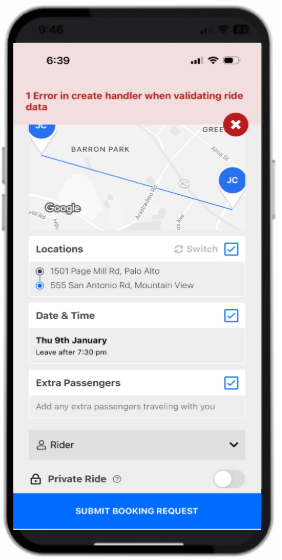
No Valid Carpool Network Selected"1 error in create handler when validating ride data" | Appears when the account is not linked to an active or valid carpool network. |
| App Crashing on Login | The app force closes or becomes unresponsive after launching or submitting login details. |
Step-by-Step Troubleshooting Guide
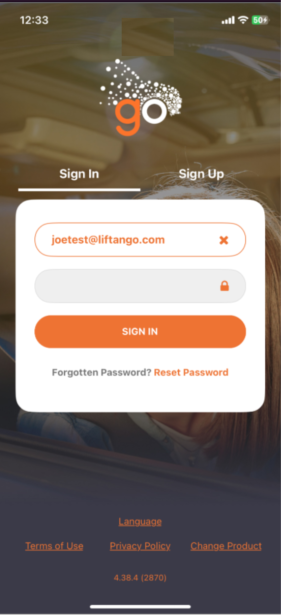
Invalid Email or Password
- Re-enter the email and password manually, avoiding autofill.
- Ensure there are no extra spaces or capitalisation errors.
- Use the “Reset Password” link if the password is forgotten.
Network Code
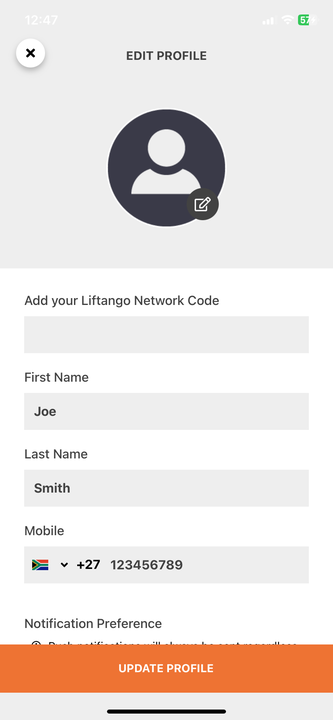
- The Network Code is only required for users associated with universities or organisations that operate multiple carpool networks.
- If unsure, leave the field blank and continue with account setup.
- If the app does not allow skipping this step, confirm with your organisation whether a code is required
Password Reset Not Working
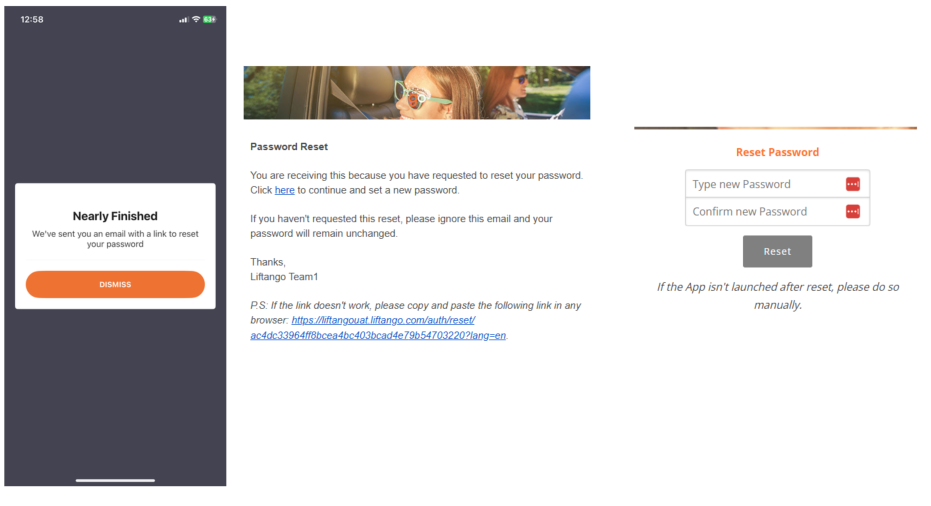
- Check the spam/junk folder for the password reset email.
- If no email arrives, wait a few minutes and try again, or attempt the process using a different browser or device.
- If the reset link has expired, initiate a new reset request.
- Confirm the correct email address is being used during the reset process.
No Verification Email Received
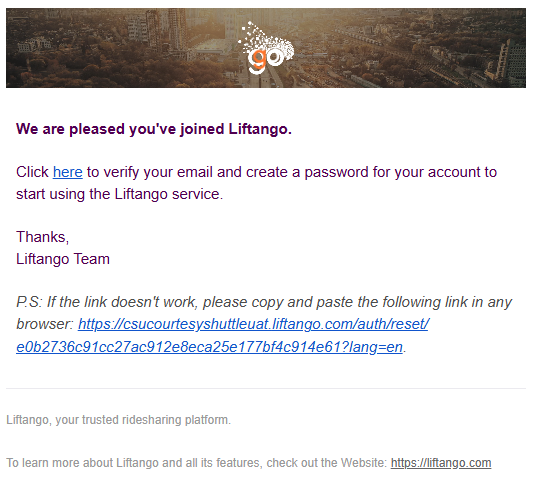
- Ask the user to check their Spam/Junk folder.
Ensure the email address was entered correctly during signup.
Confirm the user signed up with their organisation or university email address (personal emails such as Gmail, Yahoo, or Outlook may not be accepted).
No Valid Carpool Network Selected
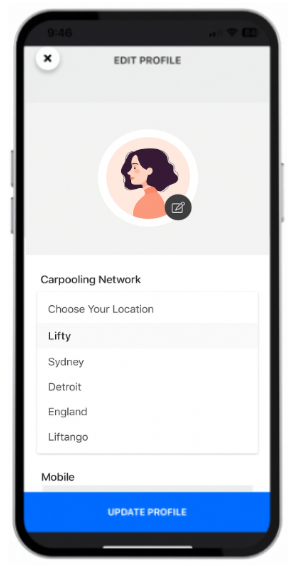
- This issue may occur if no valid carpool network is selected during sign-up or account creation.
- If prompted, select the appropriate network based on location or organisation.
Prompt Error when no valid network selected during sign up process. | Select the appropriate network based on location or organisation when prompted |
 |  |
App Crashing on Login
- Ensure the latest version of the app is installed.
- Visit the App Store (iOS) or Google Play Store (Android) to check for updates.
- If the app continues to crash, try clearing the app cache or reinstalling the app.
Clear App Cache (Android)
Settings > Apps > Carpool App > Storage > Clear Cache
- Open device Settings
- Navigate to:
Apps > Carpool App > Storage - Tap Clear Cache
- Reopen the app and attempt to log in
If there are any questions or concerns, please refer to the service's website or select 'Send Feedback' or Contact Support in the 'About' section of the mobile app for further assistance.
Was this article helpful?
That’s Great!
Thank you for your feedback
Sorry! We couldn't be helpful
Thank you for your feedback
Feedback sent
We appreciate your effort and will try to fix the article